TimTim Browser: What It Does and How to Use It
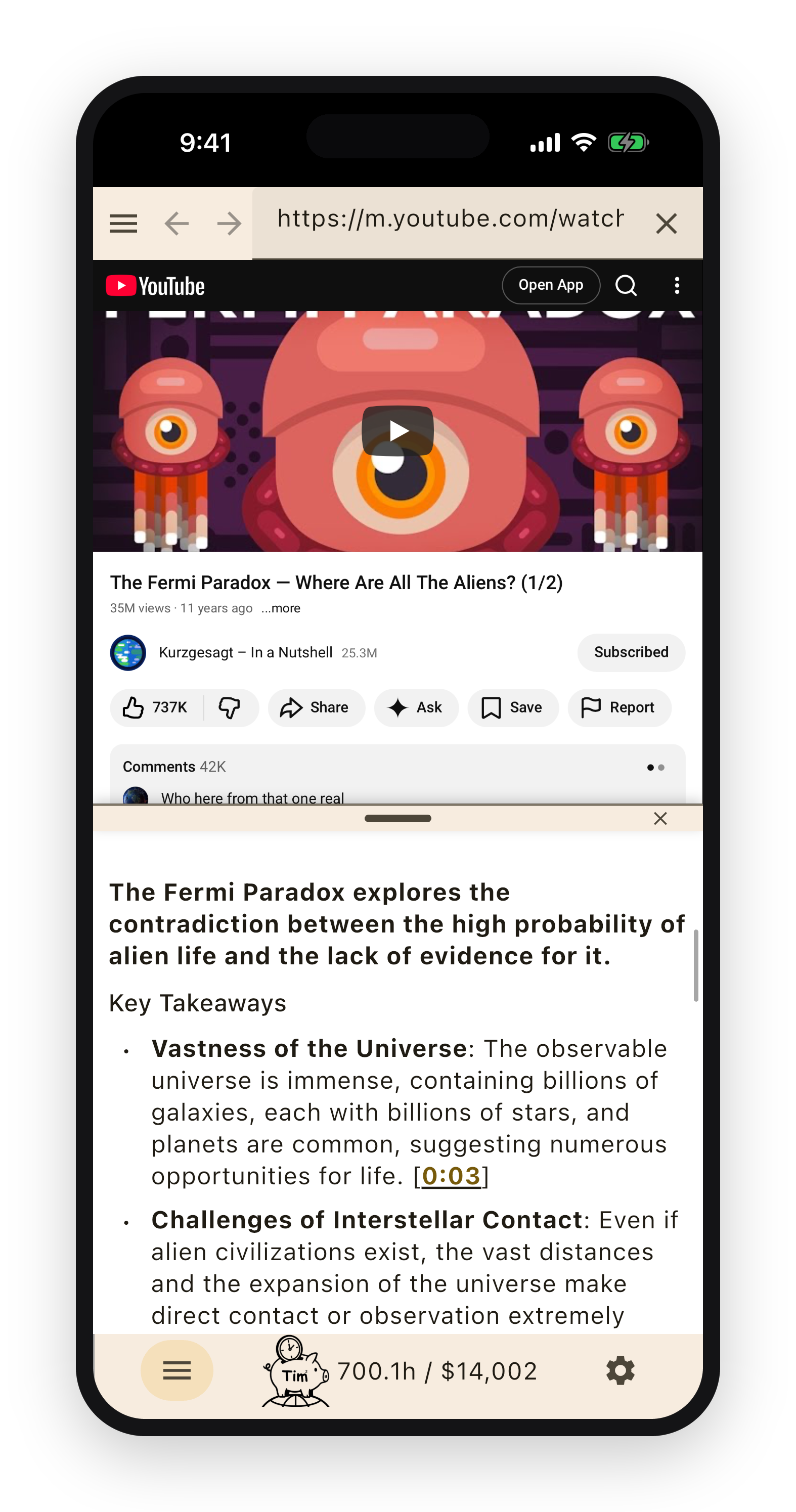
TimTim Browser is a mobile web browser that reads pages for you. You open something — a video, an article, a PDF, a book listing — and the AI writes a short summary of it on the spot. You get the point in seconds and open the full thing only if the summary tells you it is worth it. The screen splits between the page and its summary, so the original is always right there.
A browser that summarizes as you go
Most of what we read and watch online is longer than it needs to be. A ten-minute video carries one real idea. A long article hides its conclusion in the middle. A business book repeats its thesis for three hundred pages. TimTim Browser sits between you and all of that and pulls out what actually matters.
There is nothing to set up. You browse the way you always do; the page loads as usual, and a summary appears alongside it within a few seconds — the main claims, the key numbers, the conclusion. Read the short version first. When something in the summary makes you want the detail, the full page is right there to scroll into.
The rest of this page walks through what TimTim Browser can summarize, how each kind of content is handled, and how it keeps track of the time you get back. You are reading it inside the app right now, which means the panel beside this page is summarizing the very text you are reading — a live example of everything described below.
How fast it is
The speed comes from a simple trade: you read the conclusions, not the build-up. Most articles, talks, and books spend their length on introductions, repetition, examples, and filler. A summary keeps the claims, the key facts, and the numbers and drops the rest, and reading that distilled version takes a small fraction of the original.
In practice, ten minutes of spare time is enough to take in about two hours’ worth of reading and watching — very roughly ten times faster than going through it all yourself. One coffee break covers a stack of articles, a couple of long videos, and the gist of a book.
The exact figures depend on the content. A typical web article runs about 1,400 words — around six minutes at an ordinary reading pace — and its summary takes about one. A typical online video runs around twelve minutes and comes back in a minute or two. A non-fiction book of a few hundred pages, several hours of reading, fits into a short read. (These are averages drawn from common content lengths and reading speeds; your own pace will vary.)
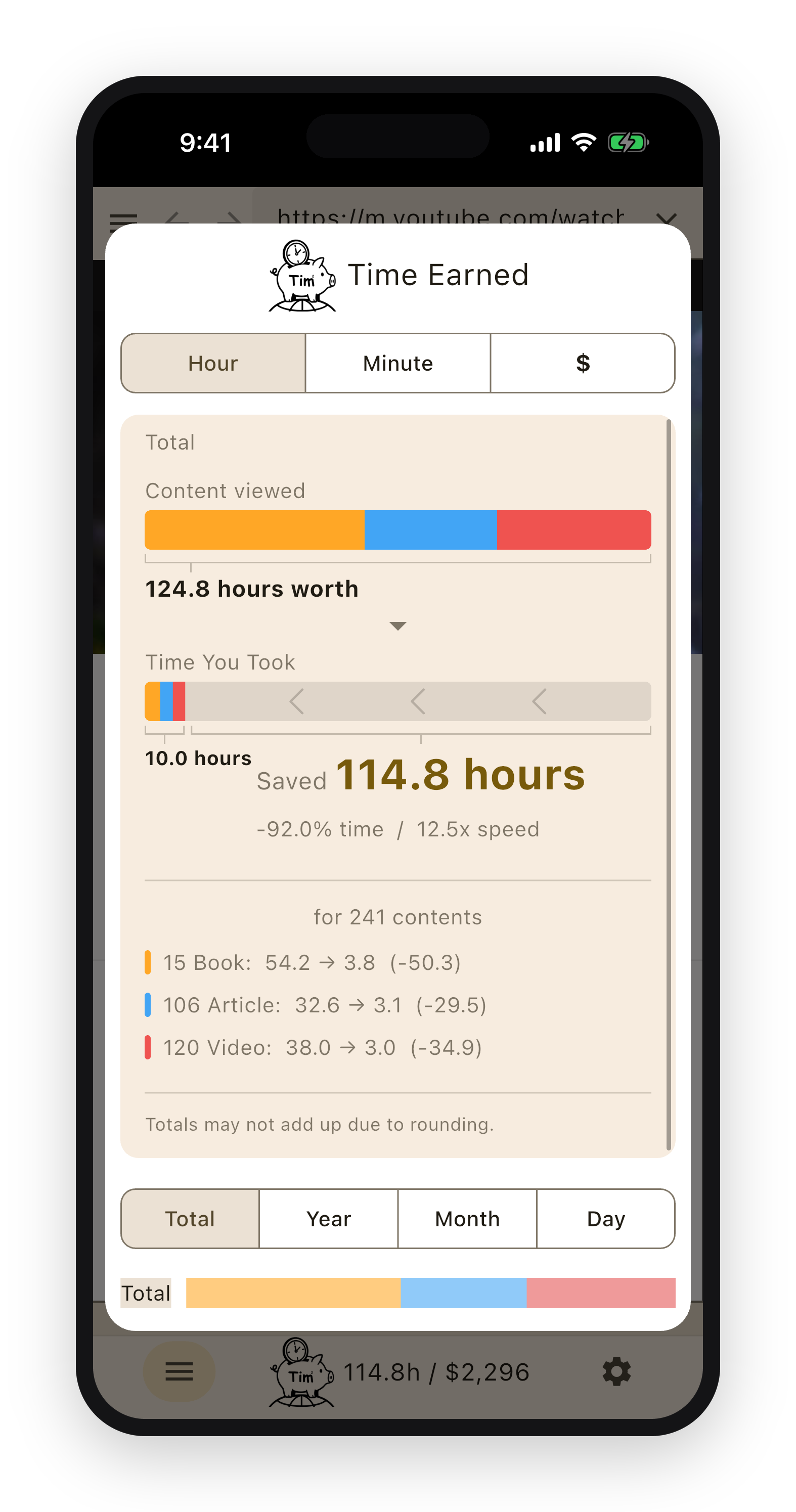
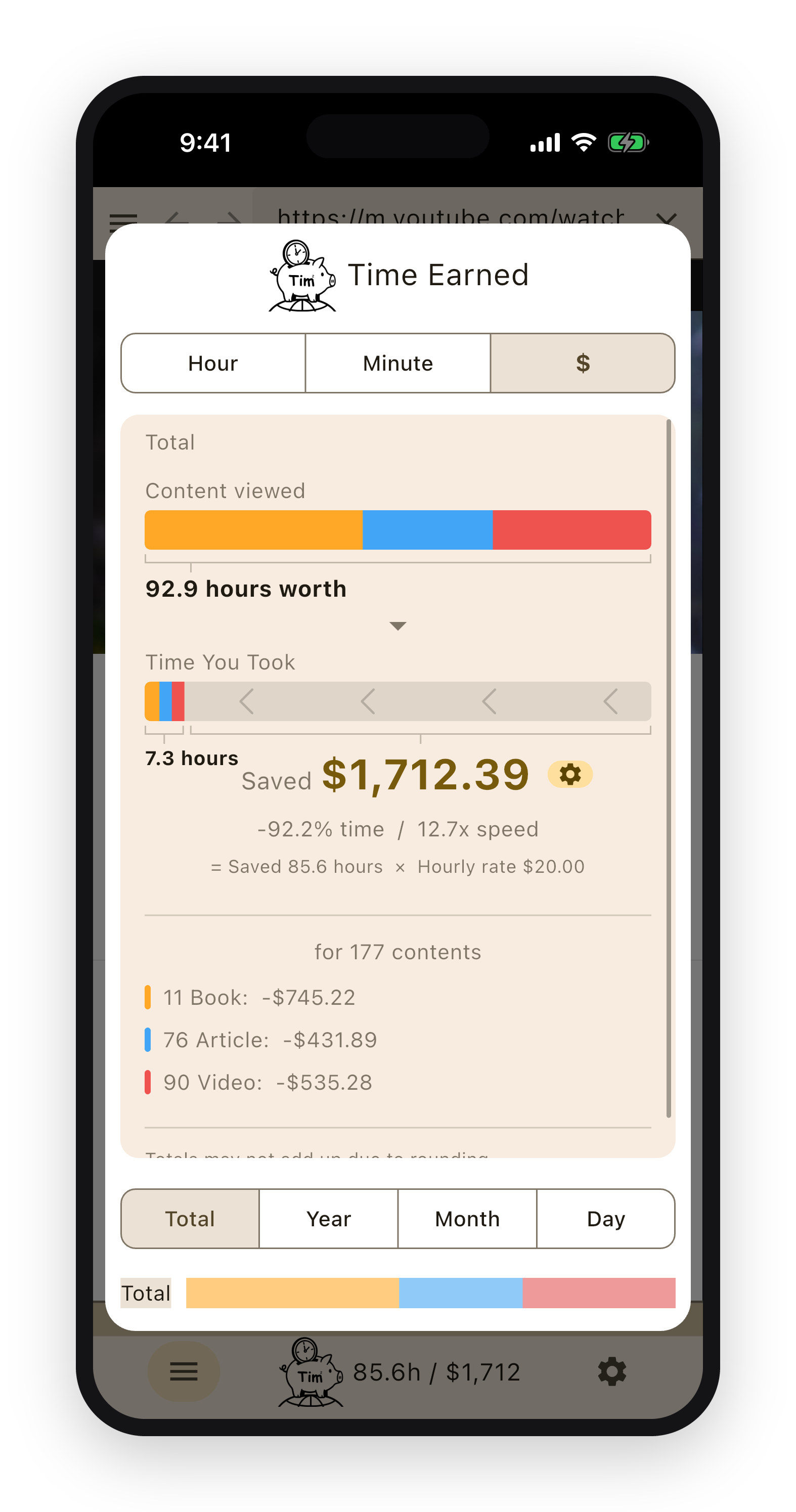
None of this is left to your imagination. TimTim Browser measures it: each time you finish something, it records how long the original would have taken, how long you actually spent, and the difference, then keeps a running total you can view by day, month, year, or all time. The number is yours to check, not a line on a poster.
YouTube videos
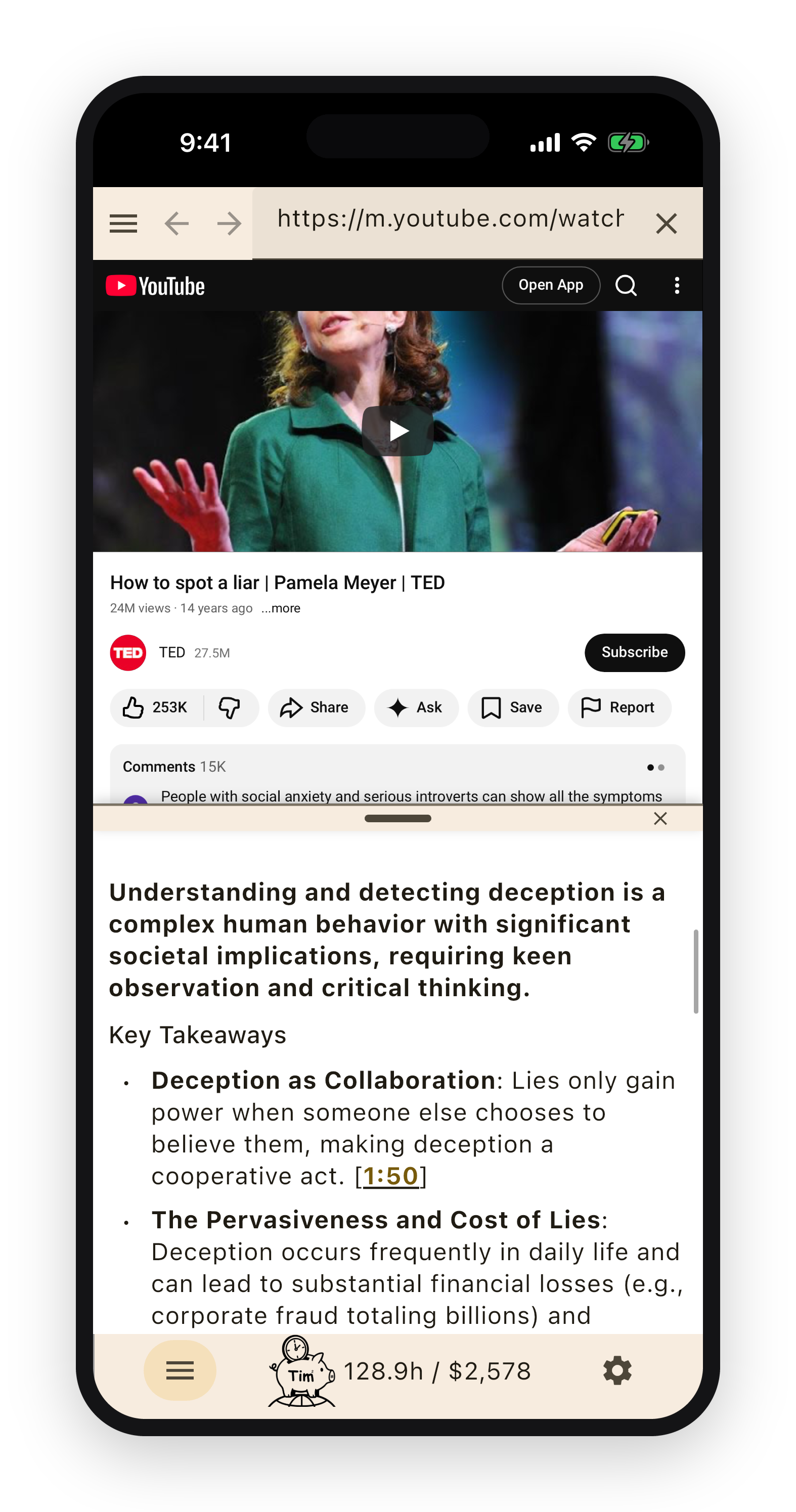
Point TimTim Browser at a YouTube video and it reads the video’s captions instead of making you watch. It turns them into a written summary with timestamps, and the timestamps are links — tap one to jump straight to that moment in the video. That is the difference between sitting through a thirty-minute talk and reading it in two, then watching only the part you needed.
It works for talks, lectures, tutorials, news, and long video essays. Read the summary first; if a point catches your interest, watch that stretch in full with one tap on its timestamp. The summary never gets in the way of going deeper — it just tells you where deeper is worth it.
If you sign in to YouTube, this turns your Watch Later list — and any other saved playlist — into something you can finally clear. Open the list and move through the videos one after another, and the hours of viewing you had been putting off collapse into minutes of reading. Signing in is what lets the app reach your own lists, so it is worth doing if you have a backlog.
Not sure what is worth your attention? TED talks are a good place to start — consistently well made, and dense with ideas you can actually use. They summarize for free in TimTim Browser, so you can skim a dozen and watch the two that land.
Amazon books
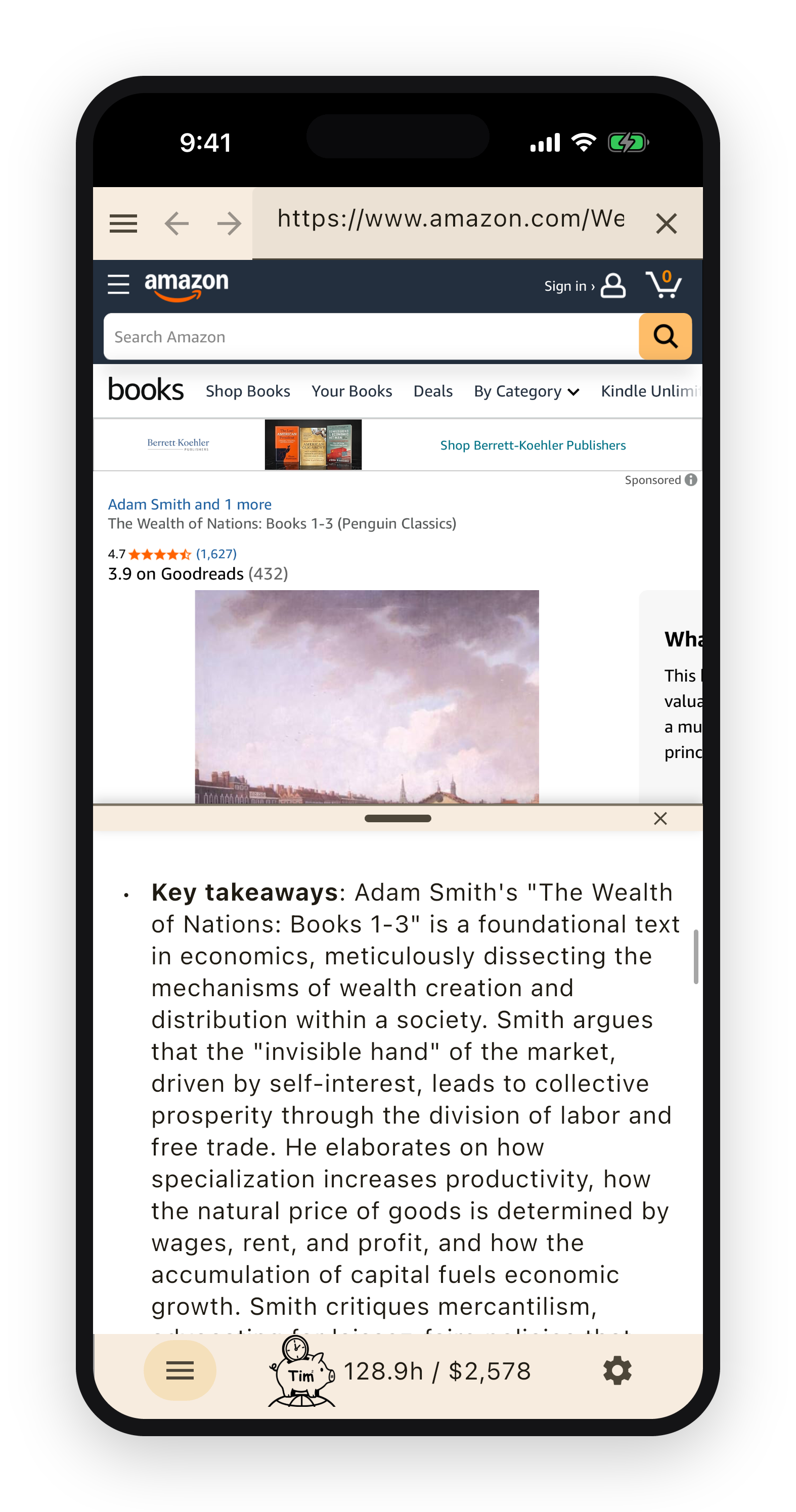
On an Amazon book page, TimTim Browser gathers what the book is actually about — its core argument and main takeaways — drawing on the page together with a web search about the title. You get the gist of a three-hundred-page book before you decide whether to buy it or spend the hours reading it. It is the same idea as a paid book-summary service, except it runs on the page you are already looking at, for any title, while you shop.
If you sign in to Amazon, your Wish List becomes a reading list. Go through it title by title and you can take in the key points of dozens of books — tens of hours of reading for a casual list, hundreds of hours’ worth for a serious one — at many times normal speed. Signing in is what lets the app open your own list.
A good book is far richer than any summary of it, and that is rather the point. When a summary makes a book sound worth it, we hope you buy the original and read it properly — that is where the real value is. If TimTim Browser sends a few more readers toward books worth buying, the people who built it will count that as a happy outcome.
There are also shortcuts into Amazon stores around the world — bestseller charts and featured lists across more than twenty countries. Browse what people are reading elsewhere, not only at home. And since the app can summarize a book written in a language you do not read and hand it back in your own, those foreign charts double as a way to learn how other places think.
PDF documents
Open a PDF and TimTim Browser reads the file itself and gives you the gist. Documents that would take an hour just to skim come back as a few paragraphs of substance.
This is where it earns its keep. Academic papers, white papers, government and industry reports, technical manuals, long contracts — the dense, slow documents people put off reading — are exactly what it is good at. Read the summary to find out what deserves a careful read, then open the file for the parts that do.
It detects PDFs on its own, whether the link ends in .pdf or the page simply serves one, so there is nothing special to do. On iPhone and iPad the document renders natively; on Android it opens in a built-in viewer.
Web articles and reference pages
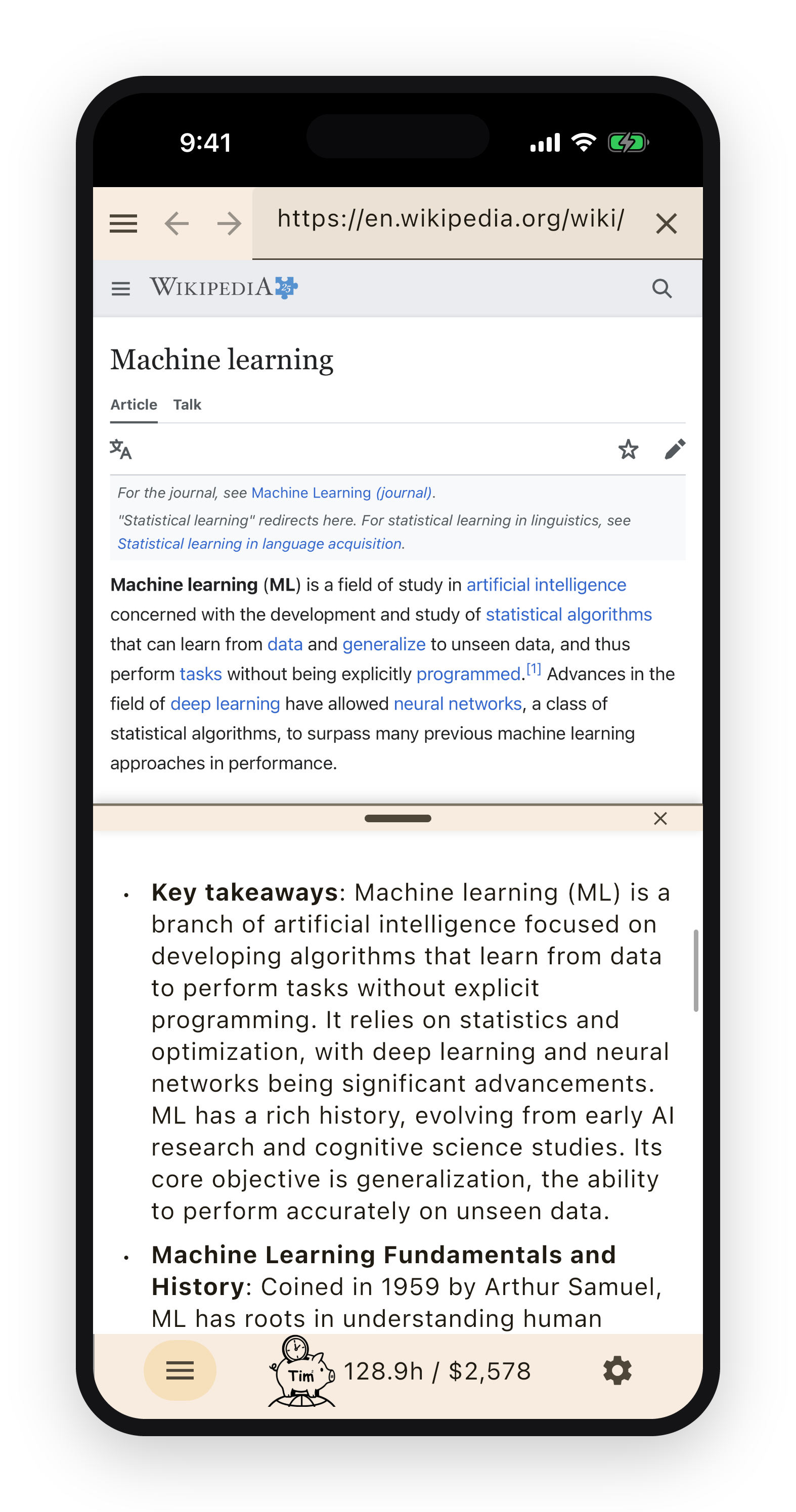
For ordinary web pages — news, blogs, documentation, encyclopedia entries — TimTim Browser extracts the article text and condenses it. On most pages you tap Summarize once. That tap is deliberate: a page behind a login, or anything personal, is never sent off to be summarized unless you ask for it, so private content stays private.
A few trusted public reference sites — Wikipedia and a handful of non-profit news sources among them — summarize on their own, the same way videos and books do, because there is nothing private about them.
Read foreign content in your own language
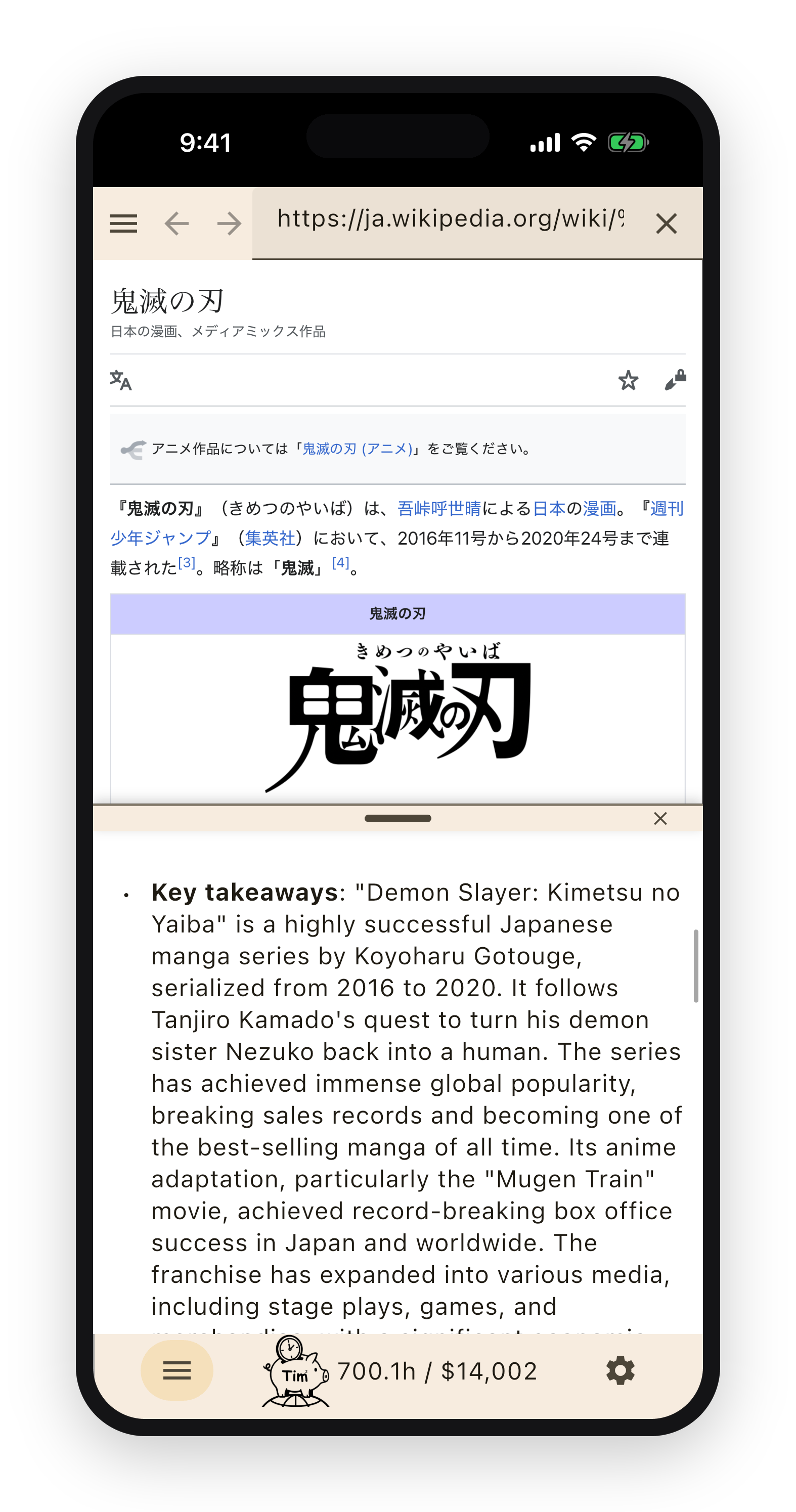
A summary is also a translation. TimTim Browser can take content written in over a hundred languages and give you the summary in any of fifty-four. A Japanese encyclopedia article, a German manual, a Spanish news report, an English lecture — you read all of them in your own language, summarized, without copying anything into a separate translator.
This is the demo you are looking at right now. This guide is written in English; if your phone is set to another language, the panel beside it is showing this text to you translated and shortened. The same thing happens on any page you open.
Summarize a page from another app
You do not have to be browsing inside TimTim Browser to use it. When you come across something worth summarizing in another browser — or in any app with a Share button — you can send it straight over.
Tap Share, then choose TimTim Browser from the list of apps. It opens the page and starts summarizing right away, so a link you found somewhere else turns into a summary with no copying or pasting. It works the same on iPhone and Android.
Portrait or landscape — whichever suits the moment
TimTim Browser is built to read well held either way. In portrait it behaves like any phone browser — one-handed and familiar, the page and its summary stacked the way you would expect. That is the comfortable default for a quick check on the move.
Turn the phone sideways and the summary stays on screen beside the page the whole time. With both visible at once there is no flipping back and forth, which is the fastest way to work through a lot of material in one sitting. Use whichever fits what you are doing.
Your privacy: what gets summarized, and what stays on your device
TimTim Browser draws a line between public content and anything that might be yours. Public pages — YouTube videos, Amazon book listings, Wikipedia and a few public reference sites — are summarized automatically, and because that content is the same for everyone, their summaries can be cached on our servers and reused. That makes them instant for the next reader and keeps the service affordable.
Ordinary web pages are treated differently. Anything behind a login, or otherwise personal, is never summarized unless you tap Summarize, so a private page is never sent off without your say-so.
And for the content most likely to be sensitive — those manually-summarized web pages, and any PDF you open — the summary is never stored on our servers at all. It is kept only in a cache on your own device, so a page from your account or a file of your own does not leave a copy with us.
What your saved time is worth
Time is often easier to grasp as money. Tell TimTim Browser your hourly rate once — your wage, or a local average if you are not sure — and pick your currency, and it converts your saved hours into an amount. The same Time Earned screen toggles between hours, minutes, and money, and breaks the total down across books, articles, and videos.
It supports a wide range of world currencies, so the figure shows up in the money you actually think in.
A pig that keeps score: belts, missions, certificates
All of that saved time is tracked by a small pig mascot in the corner. It is there to make the hours you are getting back visible, and to give the early days a bit of structure.
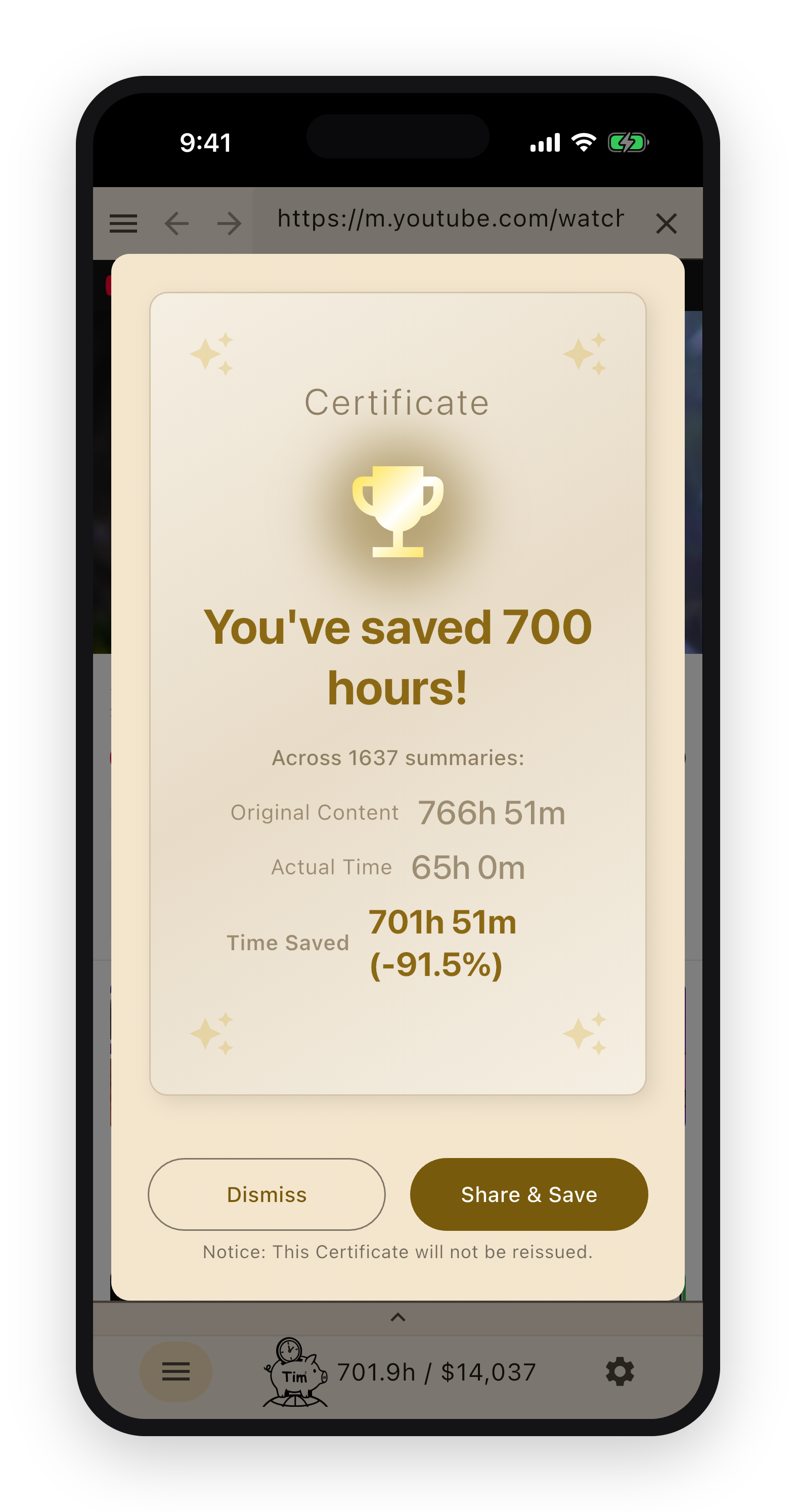
Your first finished summary earns a white belt. After that the belt is promoted as your lifetime saved time grows — coloured belts through the kyu grades, then a black belt and dan ranks beyond, the same ladder as a martial art. A few short missions point you at your first summaries so the habit starts on its own.
At milestones the app issues a certificate — a hundred hours saved, then more — that you can keep or share. None of it is required. It is simply a way to watch the hours add up.